

Welcome to the Compose Music feature in Gebeya Dala Studio! Whether you are looking to produce an upbeat Afrobeats track, a soulful Gospel song, or a relaxing Reggae instrumental, our AI-powered music generation tool allows you to bring your sonic ideas to life in seconds—no musical background required.
How to Access the Music Generator
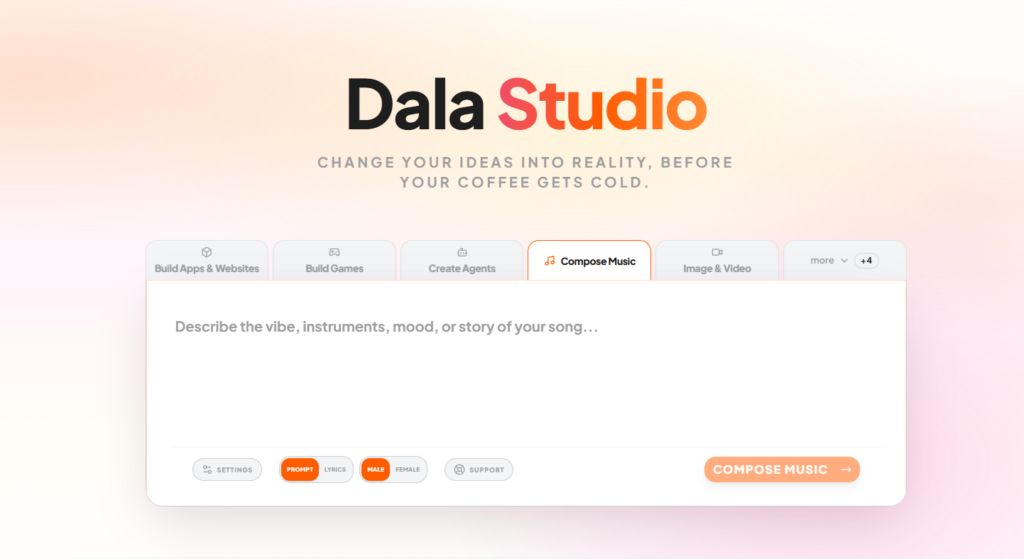
To get started, log in to your Gebeya Dala Studio account. On your main dashboard, look at the row of tool tabs located right in the center of your screen, just above the main prompt area. Click on the Compose Music tab to switch to the music generator interface.
Step-by-Step Guide: How to Create a Song
1. Describe Your Vibe (The Prompt)
Right in the center of the screen, you will see a large text box asking you to “Describe the vibe, instruments, mood, or story of your song…” This is where the magic happens! Type out a description of exactly what you want to hear.
- Example Prompt: “An uplifting reggae track with a heavy bassline, acoustic guitar, and brass section. The mood is positive, sunny, and energetic.”
2. Customize Vocals and Lyrics
Directly below the text box, use the toggles to quickly fine-tune your track’s vocals:
- Prompt / Lyrics Toggle: Switch between writing a general prompt for the AI or inputting specific lyrics you want the AI to sing.
- Male / Female Toggle: If your track includes vocals, select your preferred voice type here.
3. Advanced Settings (Optional)
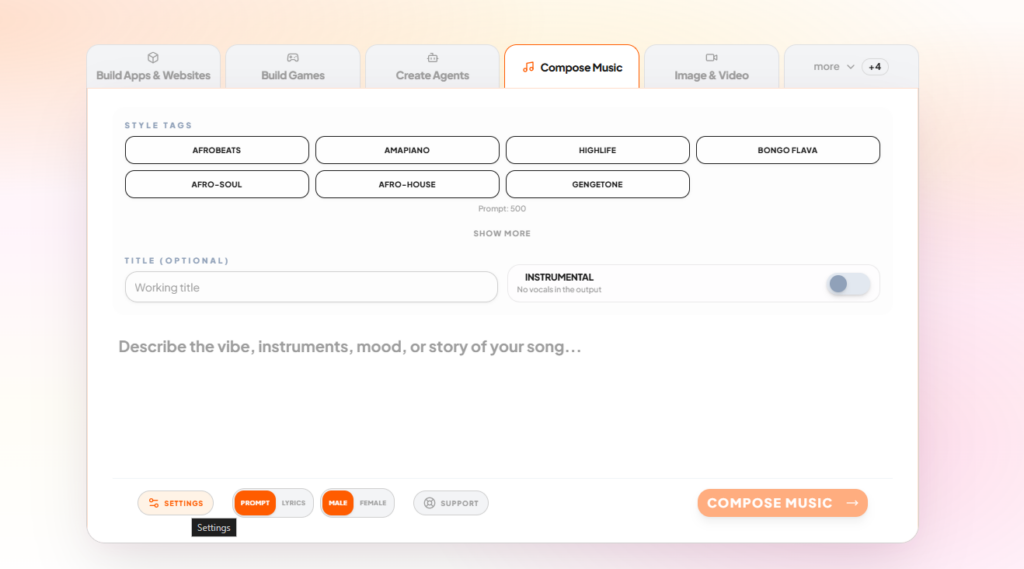
If you need deeper customization, click the Settings button located to the left of the toggles. Here, you can access advanced controls such as:
- Selecting specific Style Tags (like Afrobeats, Amapiano, Highlife, etc.)
- Adding a Working Title to your project
- Toggling on Instrumental mode if you only want the background beat with no singing.
4. Generate Your Track
Once you are happy with your setup, hit the large COMPOSE MUSIC button and wait for Dala Studio to produce your track!